NewWaves LuxeMarket
Premium Luxury Asset Marketplace & Business Ecosystem.
NewWaves LuxeMarket is a high-performance, flexible marketplace solution built on the Laravel framework. Engineered for exclusivity and scale, it empowers administrators to oversee a complex ecosystem of professional sellers and affluent buyers. With built-in KYC verification, a robust subscription model, and an intuitive theme-based architecture, LuxeMarket is more than a script—it's a complete business foundation for the luxury sector.
The platform is fully dynamic, responsive, and SEO-optimized, ensuring a premium experience across all devices and global markets.
Core Attributes
- Luxury Asset Management: Tailored modules for high-value categories including Yachts, Jets, Watches, and Real Estate.
- Sophisticated User Ecosystem: Distinct, feature-rich dashboards for both Professional Sellers and Private Buyers.
- Robust KYC Verification: Secure multi-step identity verification system to ensure platform integrity and trust.
- Pro-Grade Moderation Hub: centralized administrative control for listing reviews, user bans, and manual verifications.
- Global Search & Filtering: Precision search tools powered by location-based filtering and custom asset attributes.
- Integrated Financial System: Secure digital wallets for user deposits, coupled with powerful recurring subscription plans.
- Theme-Based Architecture: Fully customizable view system allowing for easy branding and specialized theme deployment.
- Advanced Marketing & SEO: Context-aware SEO management, automated newsletters, and journal/blog systems.
Folder Structure
When you download the package, you will see the following directory structure:
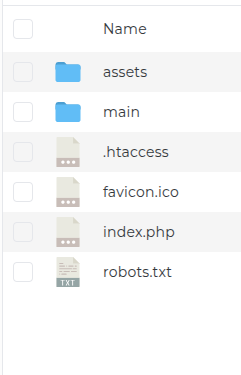
- assets/: Contains core public-facing CSS, JS, and global Image files.
- main/: This is the core application folder containing all source code (Laravel).
- index.php & .htaccess: Entry points for the application.
- favicon.ico & robots.txt: Standard web configuration files.
How To Install
Experience a seamless installation process with our script. You can effortlessly set up your platform independently by following these straightforward steps. Just follow the instructions below, and you'll have your script up and running in no time.
Installation Steps:
1. Upload Zip File
Using your hosting control panel or an FTP tool, upload the zipped application file to your server which you received after purchase.
2. Extract Code
Once uploaded, extract the contents of the zip file and relocate all contents from the Files
directory to the designated main folder for installation. Ensure that both the
index.php and .htaccess files are also relocated.
3. Create Database
Using your hosting control panel or database management tool, create a new empty database for your application and collect relevant information like database name, database username, database password.
4. Upload SQL
After creating database successfully you must upload the SQL file named database.sql
which is located at Files > database.sql
5. Update .env
Please look for .env file. The file location is main > .env. In your
.env file, update the database connection details as shown below with your newly created
database information:
DB_HOST=localhost
DB_DATABASE=YOUR_DATABASE_NAME
DB_USERNAME=YOUR_DATABASE_USER
DB_PASSWORD=YOUR_DATABASE_PASSWORD
Now please browse
http://your-site-url. Your system is now primed for immediate
use.
Admin Login Details
Admin login URL: http://your-site-url/admin/login
Username: admin@mail.com
Password: password
Note: The provided admin login credentials are set up by default. You must change them from the admin profile menu.
If you encounter any challenges during the installation process, feel free to reach out to us for assistance. Our complimentary installation support is available for cPanel-based hosting environments.
How To Use
Welcome to the LuxeMarket ecosystem. Below is a guide on how different roles interact with the platform.
For Sellers
- Register: Create a seller account and complete your profile.
- KYC Verification: Submit your identity documents for admin approval.
- Choose Plan: Subscribe to a listing plan (e.g., Professional or Private).
- Post Listings: Start adding your high-end assets (Yachts, Jets, Watches).
For Buyers
- Browse: Use advanced filters to find luxury items globally.
- Inquire: Contact sellers directly via internal messaging.
- Favorites: Save your favorite listings to track price changes.
- Review: Rate your experience with sellers after a successful transaction.
For Admins
- Moderate: Approve or reject pending listings and KYC requests.
- Configure: Manage payment gateways, SEO, and site branding.
- Support: Respond to customer support tickets and contact messages.
- Analytics: Monitor site health, user growth, and active transactions.
Admin Dashboard: Administrative Control Hub
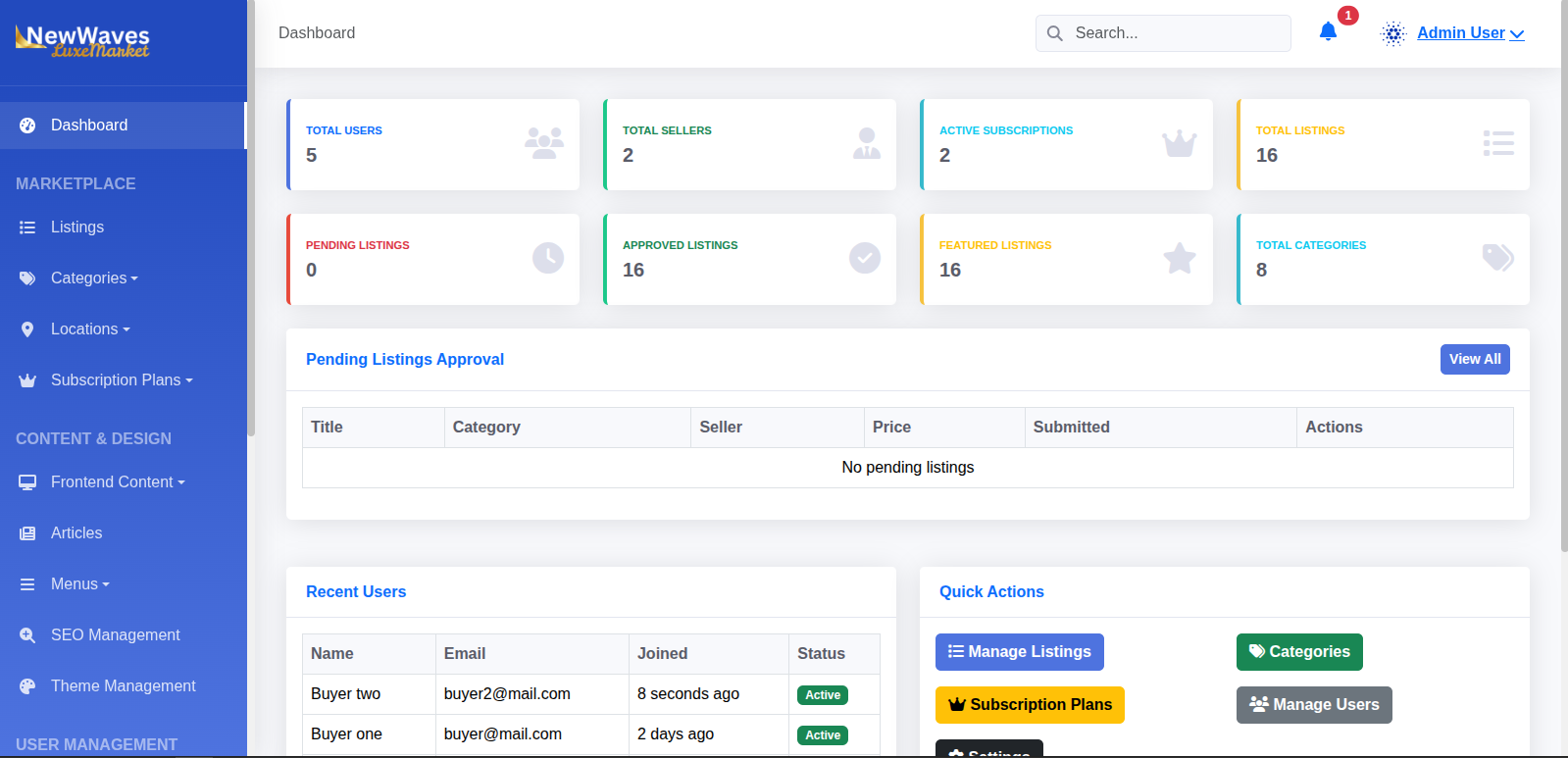
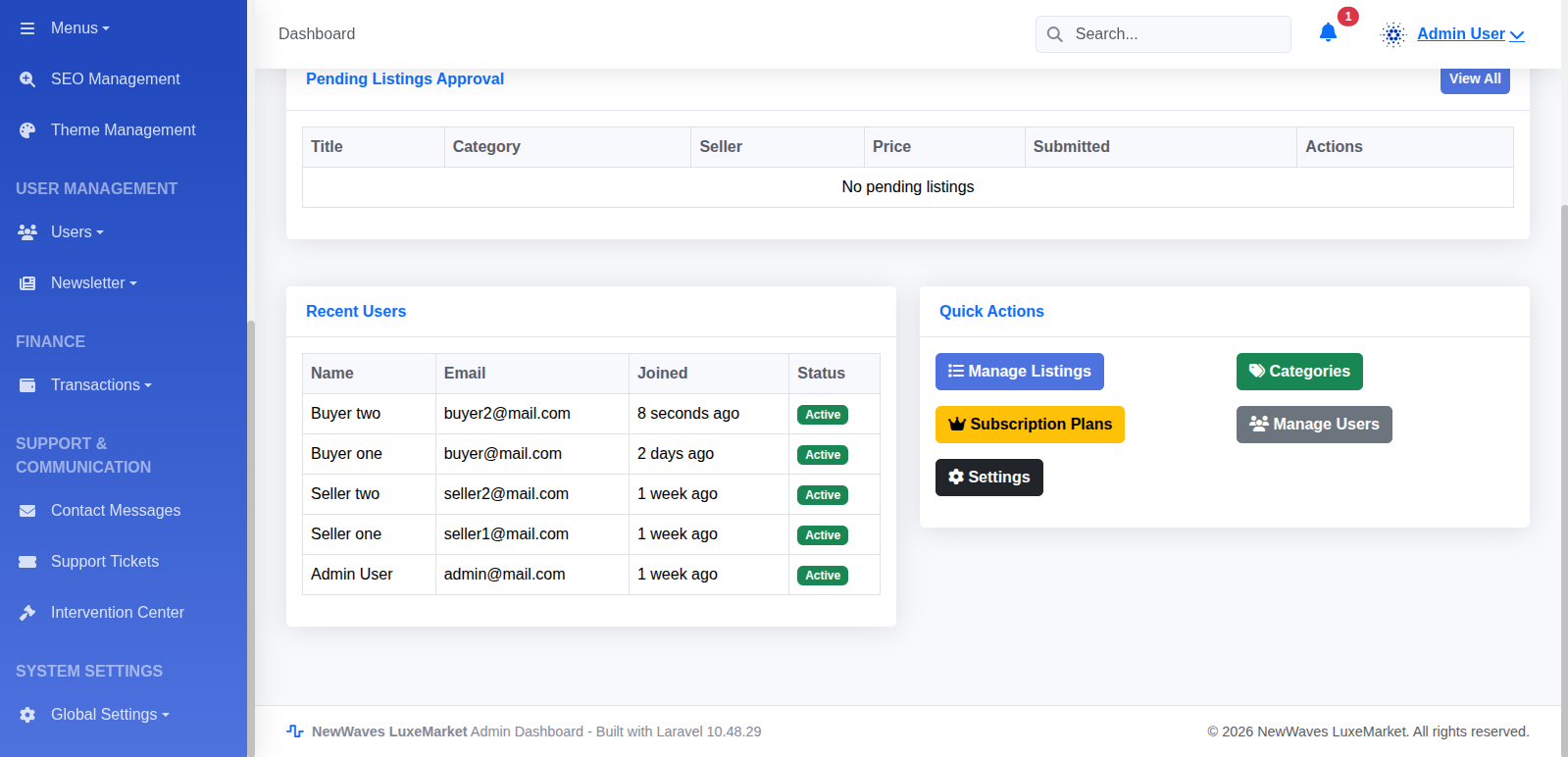
The LuxeMarket Admin Panel is designed for maximum efficiency, providing a centralized "Administrative Control Hub" to oversee every aspect of your marketplace.
Admin Dashboard - One
Admin Dashboard - Two
Key Administrative Powers:
Pending Approvals
Quickly view and approve new listings from the dashboard.
Recent Registrations
Track new user sign-ups and their current status.
Quick Actions
One-click access to Listings, Categories, Plans, and Settings.
Dashboard & General Settings
The Admin Dashboard is your command center. Upon logging in, you see an overview of total users, sales, and active listings.
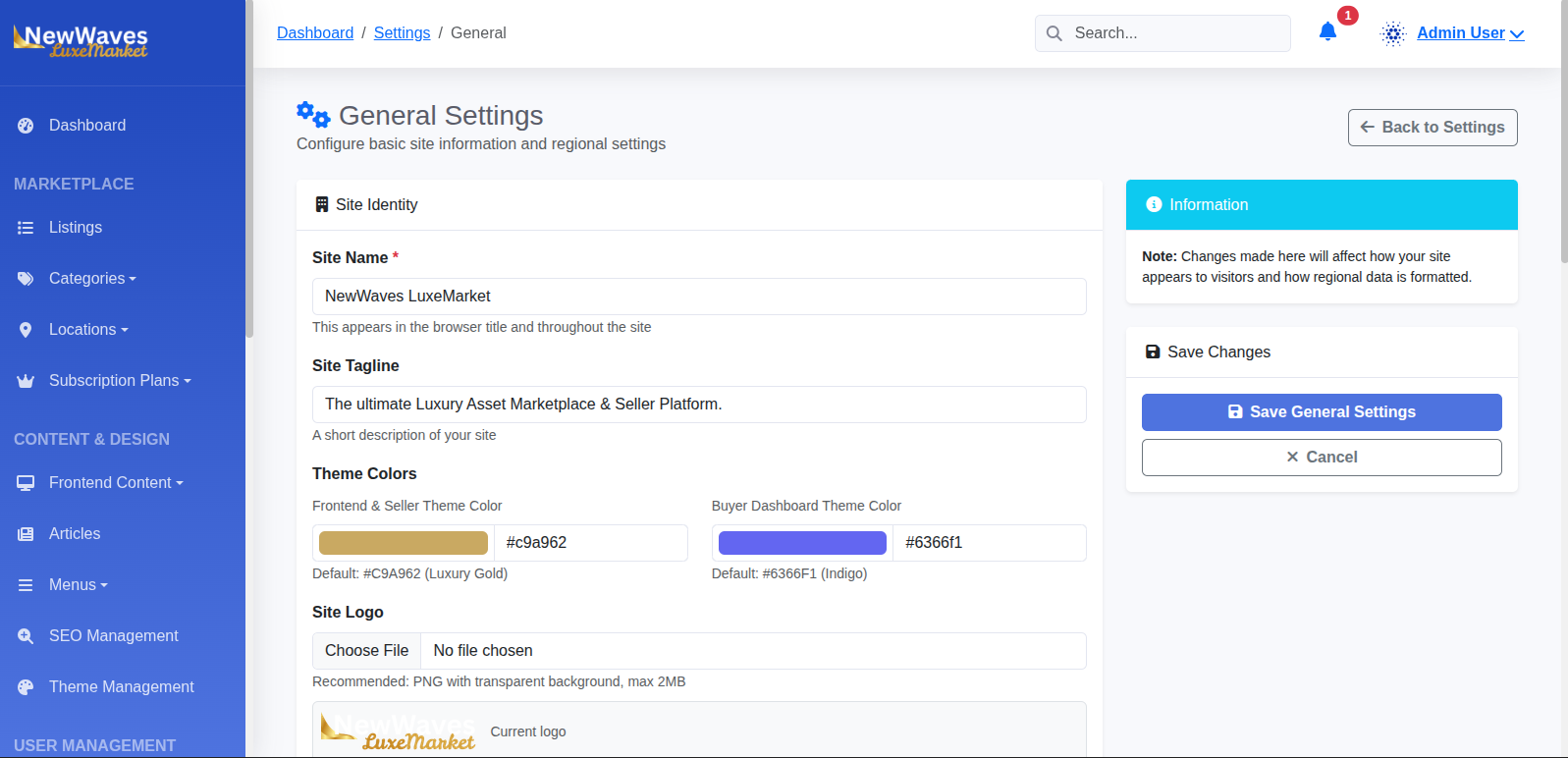
General Settings
Navigate to Settings > General to configure:
- Branding: Site Name, Tagline, Logo, and Favicon.
- Colors: Customize Primary and Accent colors for Frontend, Seller, and Buyer panels.
- System: Timezone, Date Format, and Default Currency.
- Cookie Consent: Enable/Disable the GDPR cookie popup.
SMTP Configuration
.env
file (or Admin Settings if implemented) to enable Email Notifications and Password Resets.
System Settings
Go to Settings > System to toggle:
- Maintenance Mode: Take the site offline for updates.
- Email Verification: Force new users to verify their email.
- Two-Factor Authentication: Enforce 2FA for added security.
Payment Gateways
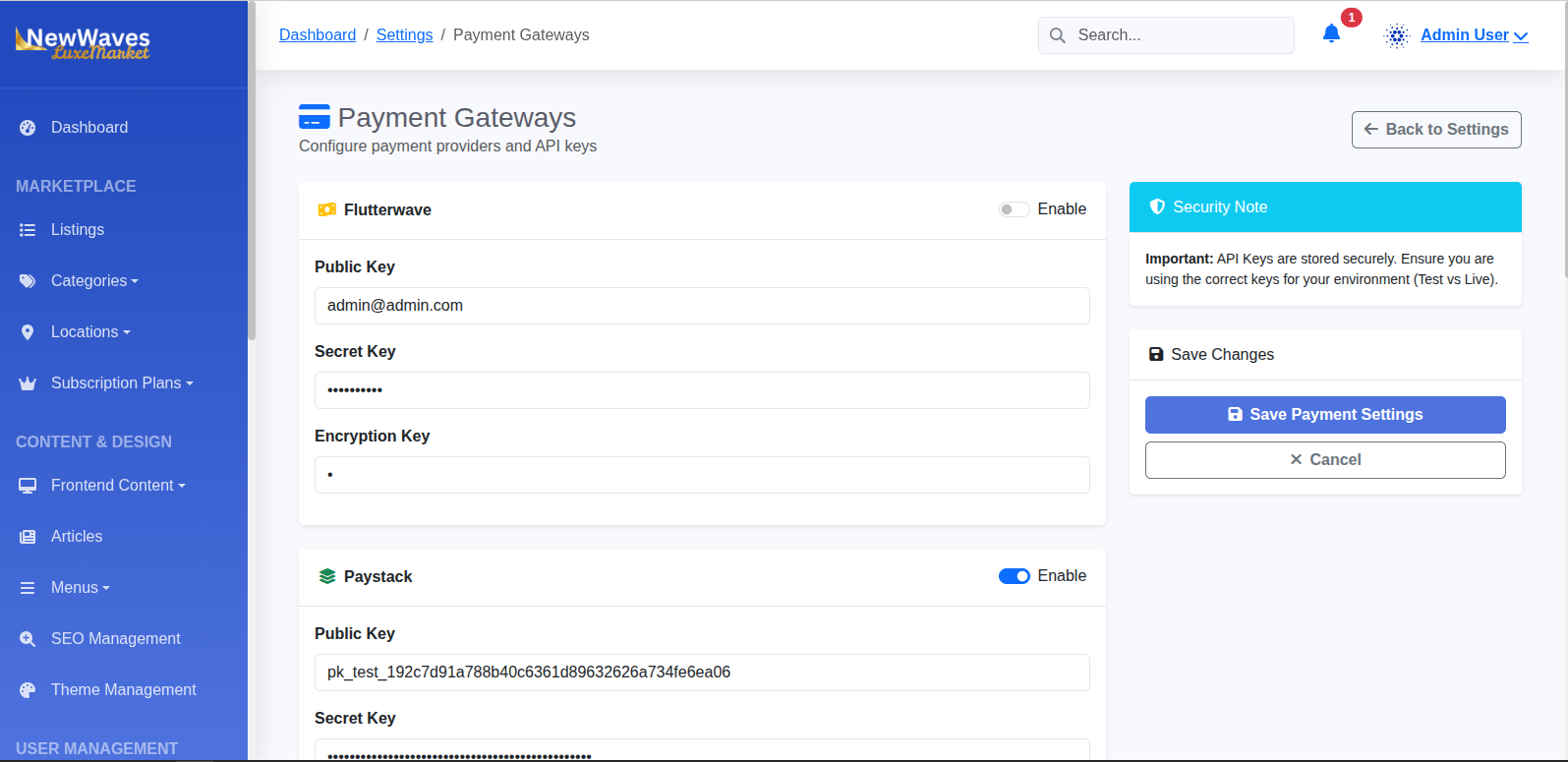
LuxeMarket supports 6 types of payment integration plus Wallet payments.
Integrated Gateways
PayPal
Client ID & Secret required. Supports Sandbox/Live.
Stripe
Publishable & Secret Keys required. Credit Card processing.
NowPayments
Crypto Gateway. API Key required. Accepts Bitcoin, USDT, etc.
Flutterwave
African Gateway. Public, Secret & Encryption Keys required.
Paystack
African Gateway. Public & Secret Keys required.
Manual Gateway
Create custom bank transfer methods. Admins verify receipts manually.
User Management
Manage all Sellers, Buyers, and Admins from one place.
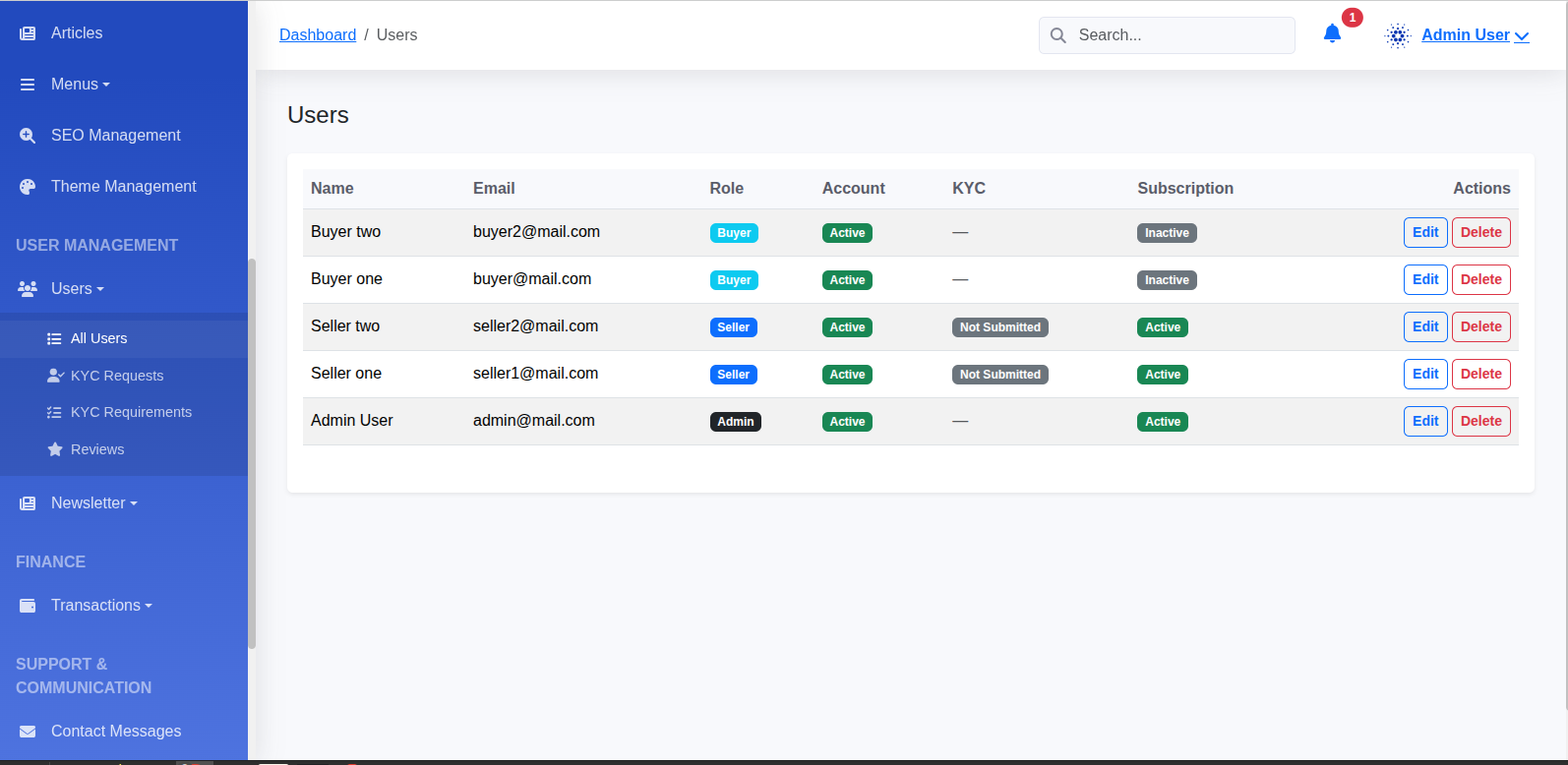
- Users List: View, Edit, or Ban users.
- KYC Verification: Review identity documents submitted by Sellers. Approve or Reject with feedback.
- Login Activity: Monitor user login IP addresses and times.
- Manual Verification: You can manually mark a user's Email or KYC as verified.
Listings & Categories
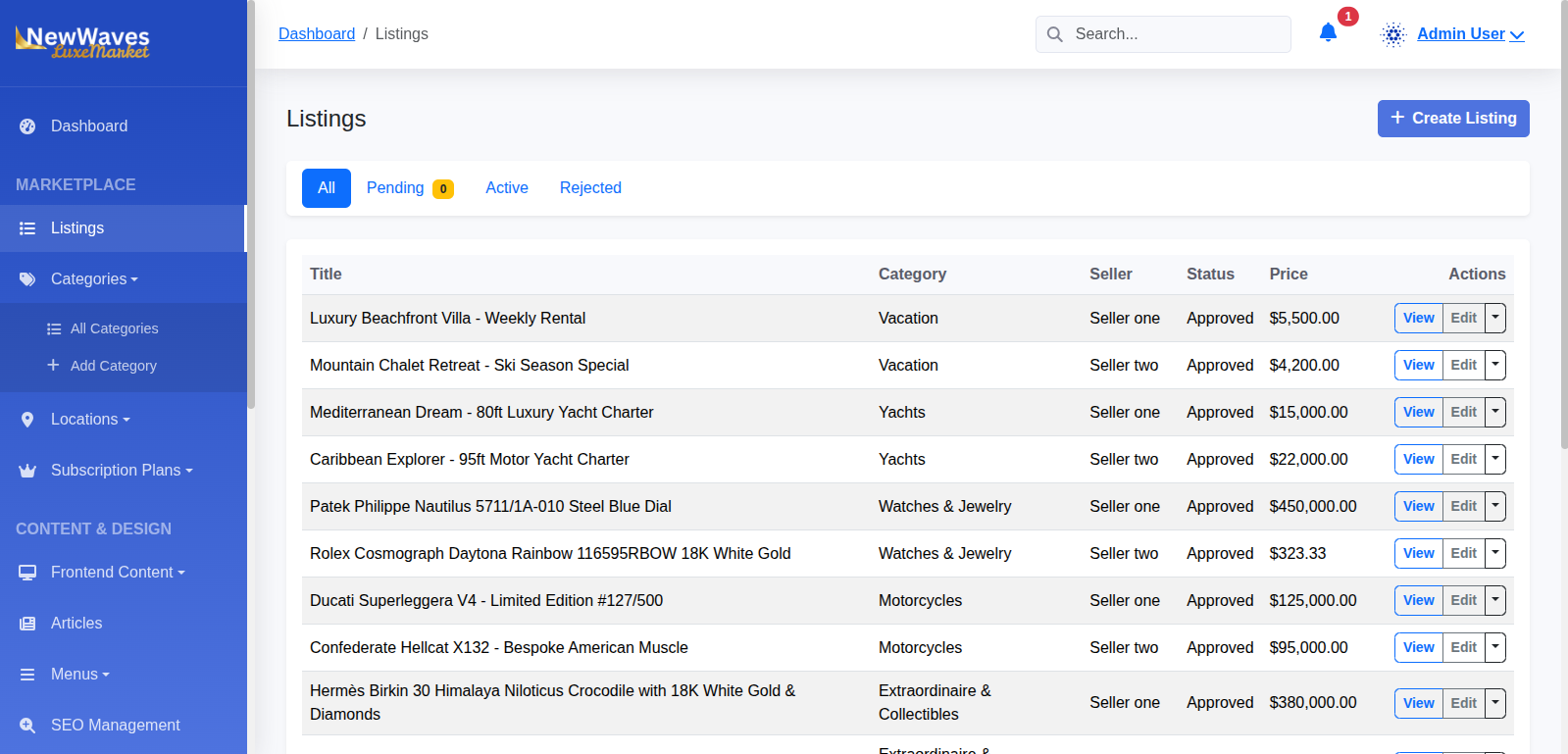
The heart of the marketplace.
Categories
Create unlimited categories (e.g., Jets, Yachts, Watches). Assign icons and slug URLs.
Locations
Define Countries and Cities available for listings. Listings are filterable by location.
Listings Approval
New listings appear in Listings > Pending. Admins must approve them before they go live on the frontend.
Frontend CMS
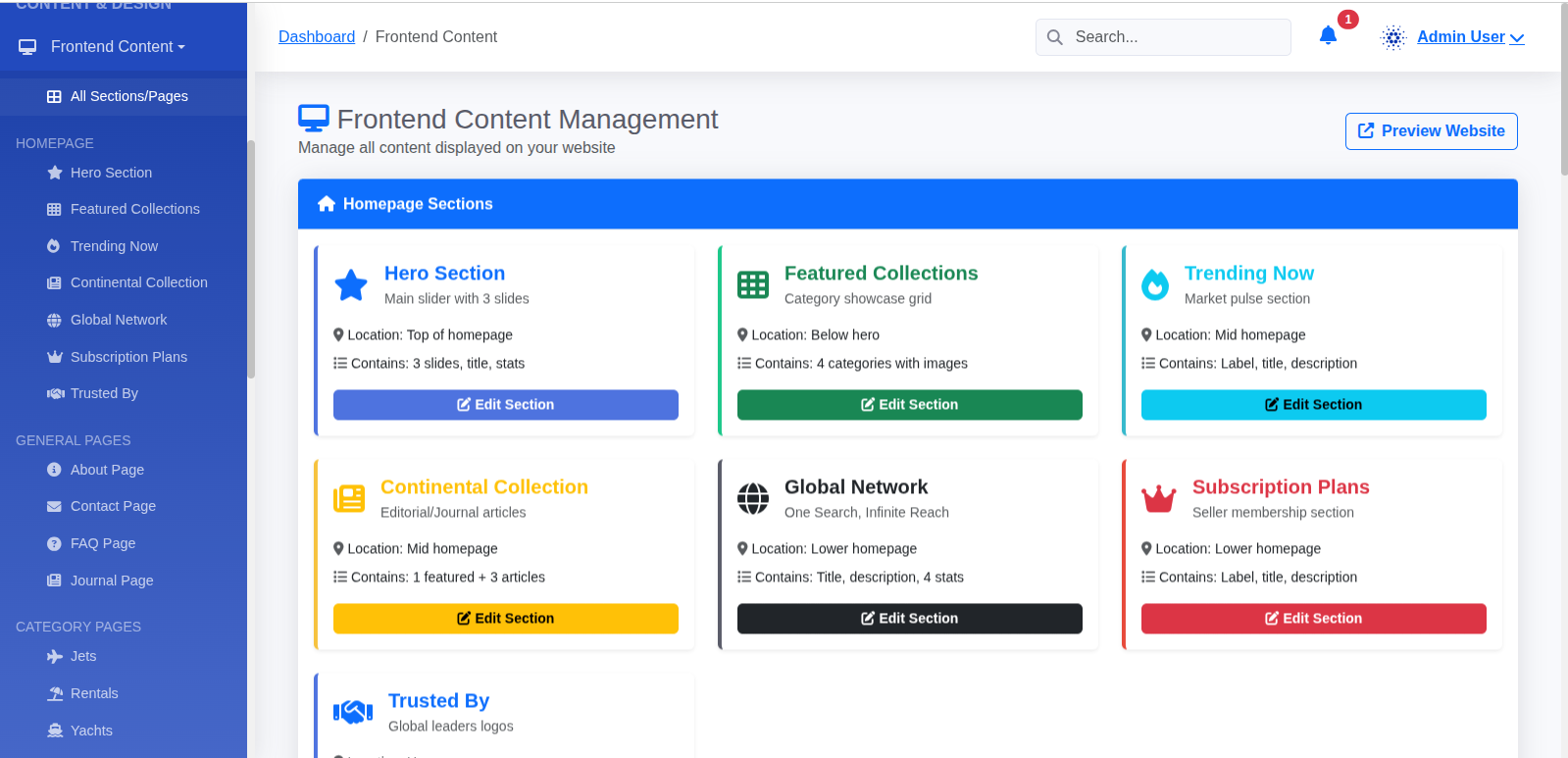
Completely customize the look of your website without code using the Frontend Manager.
Homepage Sections
Edit Hero, Featured, Trending, Trusted Partners, and Subscription banners.
Site Pages
Edit About Us, Contact, Privacy Policy, Terms & Conditions content.
Menus
Manage Header and Footer links dynamically.
Auth Pages
Customize the Login and Register page side-images and text.
Marketing & SEO
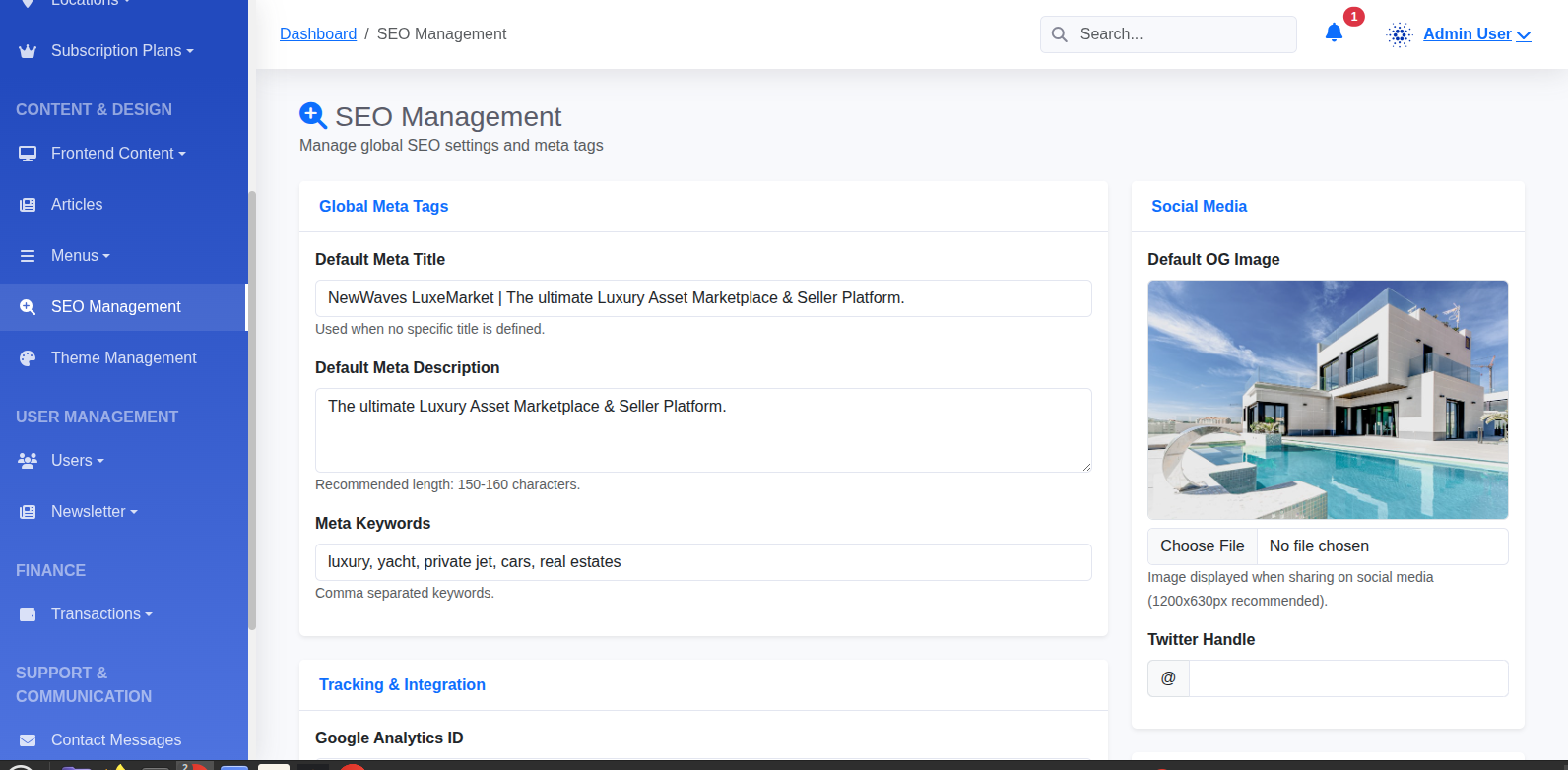
SEO Manager
Go to SEO Configuration to set global Meta Titles, Descriptions, and Social Sharing images for Facebook/Twitter.
Newsletter
Send bulk emails to subscribers.
- Subscribers: View list of subscribed emails.
- Compose: Write HTML emails and send to all subscribers instantly.
Articles (Blog)
Keep your users engaged with the Journal section.
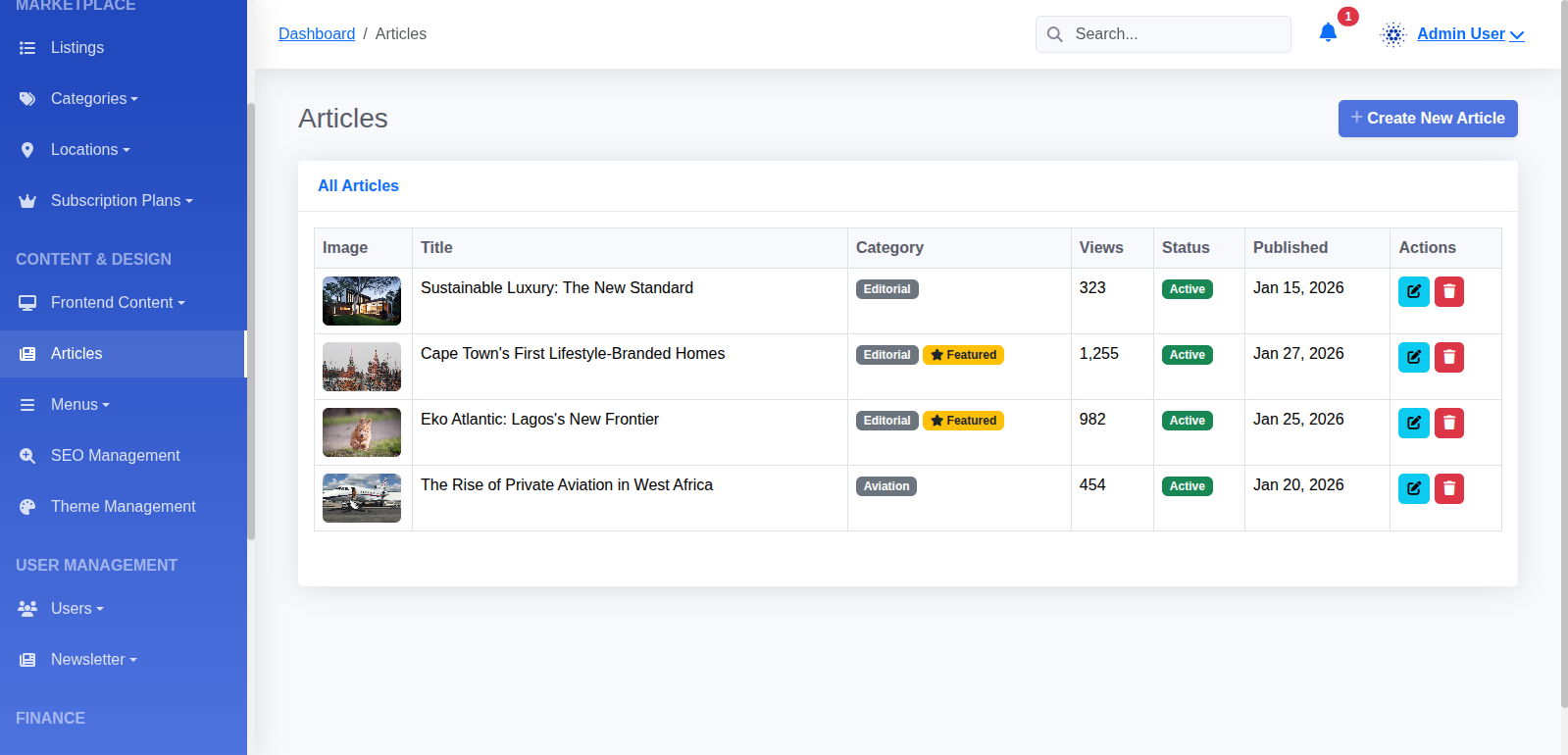
- Create new blog posts with images and rich text.
- Manage active/inactive status of articles.
- Articles appear automatically in the "Journal" section of the frontend.
Finance
Manage the flow of money in your marketplace.
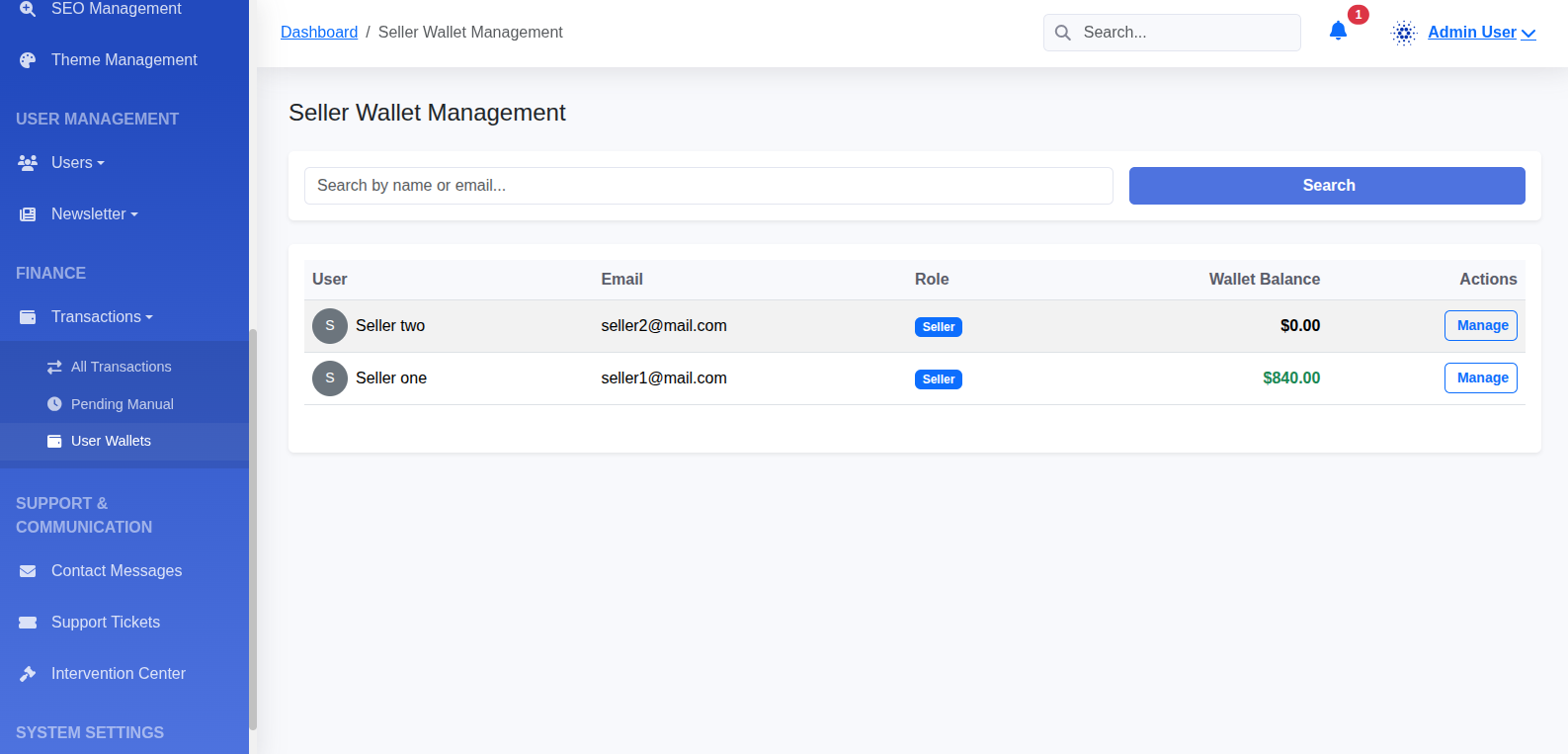
Wallets
Every user has a digital wallet.
- Deposits: Users deposit via Automated Gateways or Manual Bank Transfer.
- Manual Approval: Approve/Reject manual deposit receipts in Deposits > Pending.
- Adjust Balance: Admins can manually add/subtract funds from any user's wallet.
Subscriptions
Create Recurring Revenue.
- Plans: Create Monthly/Yearly plans with specific Listing Limits.
- Payments: Users can pay via Wallet Balance or Direct Gateway Payment.
Communications
Support Tickets Overview
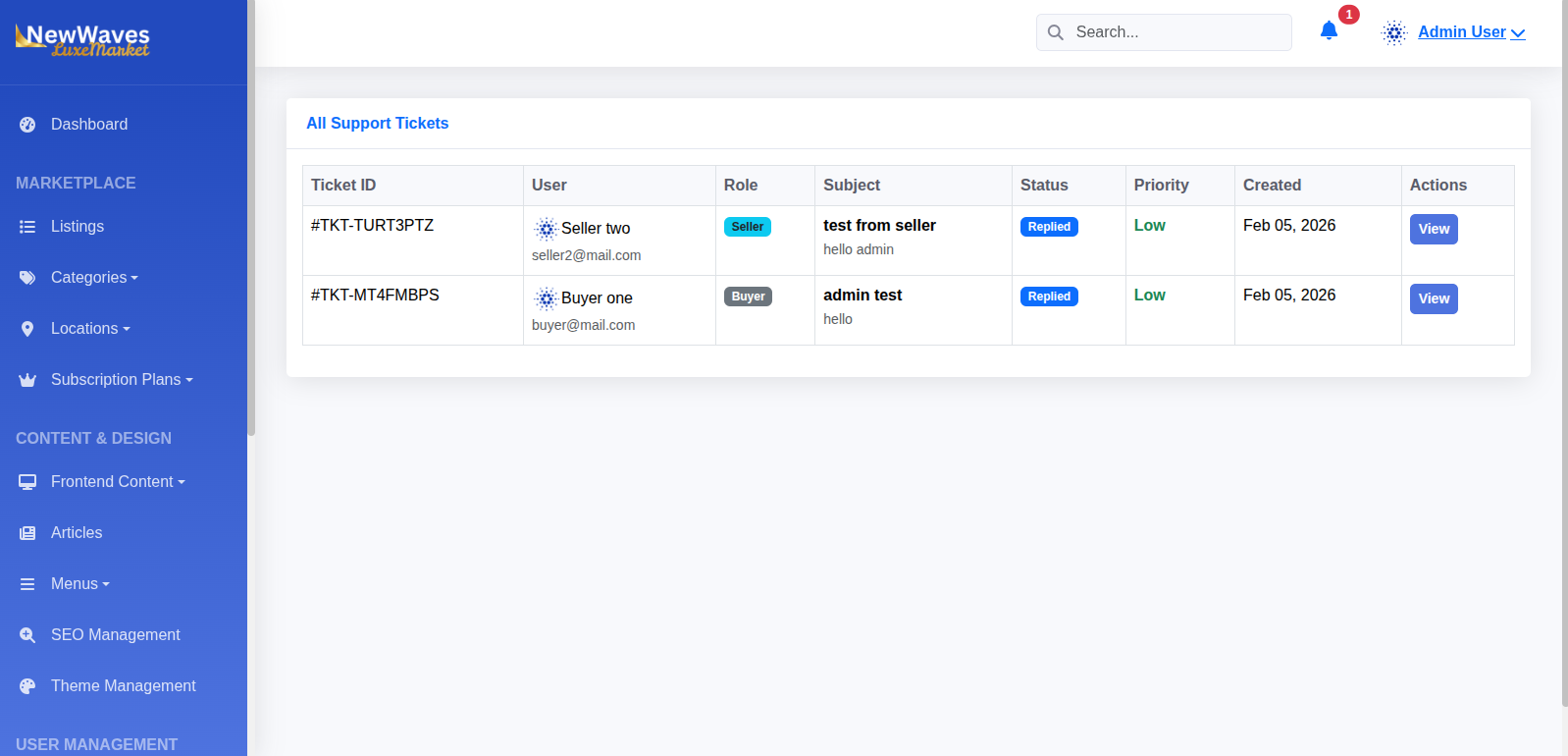
Ticket Details
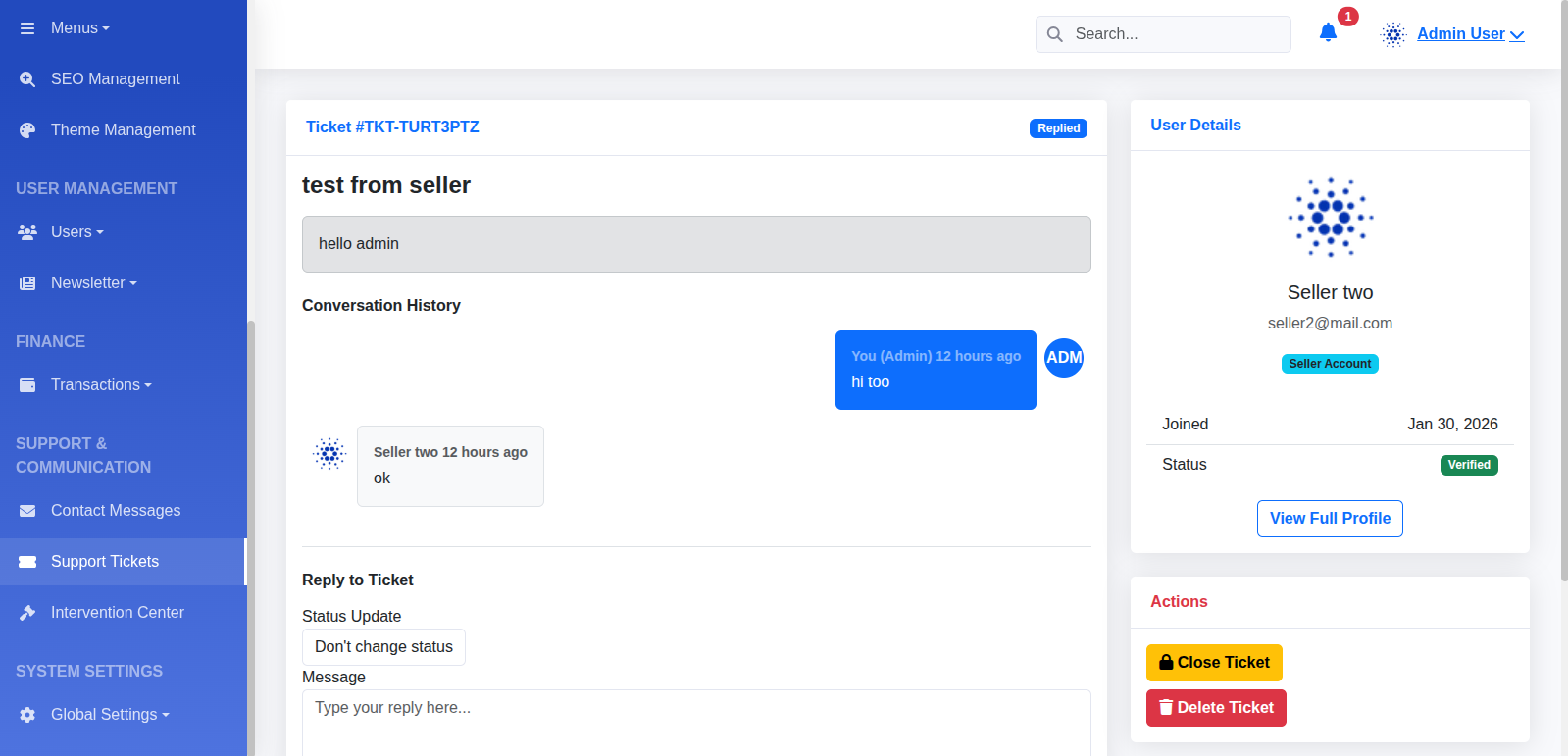
Support Tickets
Help desk system for user inquiries. Reply to tickets, close resolved issues, and view attachments.
Contact Messages
View messages submitted via the "Contact Us" form on the frontend.
Templates
- Email Templates: specific customizable emails for events (Welcome, Invoice, Reset Password).
- SMS Templates: Customize SMS notifications sent to users.
Assets Credits
NewWaves LuxeMarket utilizes several high-quality open-source assets and technologies to provide a premium user experience.
- Laravel Framework: laravel.com - The elegant PHP framework.
- Font Awesome: fontawesome.com - World's most popular icon set.
- Google Fonts: fonts.google.com - Inter and Playfair Display typographies.
- jQuery: jquery.com - Fast, small, and feature-rich JavaScript library.
- Bootstrap: getbootstrap.com - Powerful frontend toolkit.
- Pexels / Unsplash: High-quality royalty-free imagery for preview demonstration purposes.
FAQs
How do I change the currency?
Can I verify users manually?
Where is the .env file?
Contact Support
If you have questions not covered here, feel free to reach out.